Friday, 6 February 2015

How to Solve iPhone 5 Network Problem?

How to Solve iPhone 5 Network Problem?

Before anything else, an iPhone 5 is a phone that you would need to make calls and to send text messages all over the world, and it would surely be considered as useless if you are not able to get this thing done right for you. IPhone 5 network problem can happen due to any of the reasons, your SIM card might be faulty or your Carrier might be going through some sort of maintenance which is forbidding your phone to get the signals. Besides that, phone might have incurred some sort of damage due to which you are encountering different network problems.
In the following lines you will get to know different types of iPhone 5 network problems followed by all of their possible solutions.

Problems

  • No Network in iPhone 5.
  • Low Signals.
  • iPhone 5 only searching for network but not connecting.
  • Signal dropping in iPhone 5.

Reasons of Problems

  • Your service provider might be going through some sort of network maintenance.
  • Your SIM card might be faulty.
  • Your phone has encountered any kind of physical or water damage.
  • You might have left Airplane mode on.
  • Power Amplifier IC or any of the components might be faulty.

Workaround

  • Restart your phone and check.
  • Remove and re-insert SIM.
  • Toggle between ON and OFF of Airplane Mode.
  • Go to other locations in order to verify whether you have signal problems in your home or not.
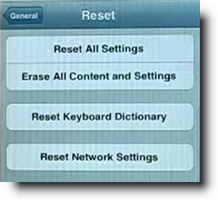
  • For “Only Searching for Network but not connecting”, Go into:
    • Settings.
    • General.
    • Reset.
    • Reset Network Settings.
    • Confirm.
  • Check with any working SIM card and check.
  • Update your iOS.

Hardware

iPhone 5 antenna contacts and wire
antenna wire soldering point
antenna contacts soldering points
  • Re-solder antenna’s on-board connector (Re-solder two antenna’s points) and antenna wire. Soldering points are mentioned in Picture above.
power amp capacitors coil
  • Check continuity of capacitor “C1” with Antenna (Capacitor is at the opposite side of Antenna). If there is no continuity then place jumper, if it still fails then change capacitor C1.
  • Now Check Capacitor “C2” and Coil. If any of them is faulty, replace.
  • Reheat Power Amplifier IC and Check, if it is faulty then replace it.

Sunday, 4 January 2015

How To Flash Stock ROM Via Odin On Samsung Galaxy S5


How To Flash Stock ROM Via Odin On Samsung Galaxy S5


Odin is very useful software of Samsung recovery and this is used for flashing any Samsung devices. So if you have a Galaxy S5 and want to flash stock ROM, then you can follow the steps described below forFlash Stock ROM via Odin On Samsung Galaxy S5. For this process to be done in your Galaxy S5 some equipment are needed. Those are:

Things you need

> Your computer
> USB cable
> And of course your Samsung Galaxy S5.
You can download the listed software or tools that are available from internet like Odin3 software, stock ROM File and Samsung Mobile Driver. Now unzip Odin and Stock ROM file. Samsung Mobile Driver needs to be installed and closed. If any other device is connected to your computer through USB cable then disconnect it immediately. Also it is better if you have back up of all the data of your phone.
Apart from Galaxy S5, if you face problems on other phones such as Htc One M8Moto X etc, you can visit us.

HERE IS A DETAIL PROCESS TO FLASH STOCK ROM VIA ODIN ON SAMSUNG GALAXY S5

Flash Stock ROM via Odin On Samsung Galaxy S5
> Already you have downloaded Odin3 tool. Now run it as administrator.
> Click on the PDA button and navigate to the *.tar or *.tar.md5 firmware file.
> This process requires your Galaxy S5 to be switched off completely.
> Now set your device into download mode by pressing and holding volume down, Home and Power button together and then Volume up button to continue this process.
> Connect your phone to the computer with USB cable to Flash Stock ROM via Odin On Samsung Galaxy S5. Now you can notice a sign of ODIN (ID:Com Section) and ‘Added’ in message box.
> Make sure that re-partition check box is not checked.
> Click start and you will observe ‘RESET’ or ‘PASS’
> Factory Reset it from Recovery Mode if your phone gets stuck in boot loop. The process is completed.

HOW TO RECOVER GALAXY S5 MESSAGES


How to Recover Galaxy S5 Messages

If you want to get back the deleted messages that you have mistakenly removed just sometimes back, it is possible by software called Wondershare Dr.Fone for android. When you delete some text messages by mistake in your Galaxy S3, S4 or S5 the messages are not sent to trash immediately. These are only marked as useless information and are overwritten by the new data that you create. New data refers to performing any new task like typing messages, calling or takingphoto etc. So don’t go for any new task in order to get back the messages that you have deleted just few minutes back. The full process to Recover Galaxy S5 Messages is discussed here.
Recover Galaxy S5 Messages

STEPS TO RECOVER GALAXY S5 MESSAGES

> First you have to download the Wondershare Dr.Fone for Android in your PC from the internet.
> Now open the software in PC and connect your phone with the computer.
> This process will ask to enable USB debugging in your phone if you have not done it before.
You can activate USB debugging in your phone by going to settings > Application > Development > USB debugging in Android 2.3 or older version.
For Android 3.0-4.1, follow this path Settings > Developer options > USB debugging.
And for Android 4.1-higher version go to Settings > about phone > build number (numerous times till you get the note ‘you are under developer mode’. Now go back to Settings again > Developer option > USB Debugging.
> Connect the phone with PC again.
> Once your phone is detected click the next button.
> A pop up will be seen in your phone asking you to ‘Allow’ or ‘not to proceed’. Select ‘Allow’ and click on start to scan the Galaxy S5.
> A new window will be opened again that consisting a list of files, messages, videos, contacts etc. You just select the messages and click next.
> Now select ‘scan for deleted files’ in standard mode or advanced mode.
> After completing the scan all the recoverable message will be shown. Select those messages that you want to recover and go down to press the button ‘Recover’. The messages will be saved as HTML file in PC.
So, this is the way to recover Galaxy S5 messages.

THE BLACK VERSION OF XIAOMI MI5 LEAKED

THE BLACK VERSION OF XIAOMI MI5 LEAKED

The Xiaomi president Lei Jun had announced that they are going to launch their new flagship phone at CES in the next month. But he did not confirm the name of the new version. So we are wondering that the name might be Xiaomi Mi4s or it can be called Xiaomi Mi5. An image has […]

Monday, 29 December 2014

android hidden codes

 Hidden menu dial pad codes
Use at your own risk some dial codes may not work and some will work

To turn on hidden menu enter this code into the dial pad
*#22745927


*#06# Shows IMEI (International Mobile Equipment Identity) number

*#0*# LCD Test Menu
Dial the secret code *#0*#. Now you get a screen with title LCD TEST as shown in image and below that you have lots of option to test various hardware parts of your phone such as speaker, sensor, lcd, etc

*#8999*523# LCD Brightness

*#1234# To check Software and Hardware information, PDA, CSC, MODEM (Firmware Version)

*#2222# H/W Version

*#*#4636#*#* user statistics and Phone Info

*#0011# Displays status information for the GSM

*#7780# Factory Reset
*2767*3855# Full factory reset (Don’t dial unless you have problem, it does not ask you to confirm )

*#12580*369# SW & HW Info
#*#8377466# S/W Version & H/W Version
#*2562# Restarts Phone
#*3849# Restarts Phone
#*3851# Restarts Phone
#*3876# Restarts Phone
#*5376# DELETE ALL SMS!!!!
*#197328640# Service Mode
*#0228# Battery status (ADC, RSSI reading)
*#32489# Service mode (Ciphering Info)
*#2255# Call List
#*3888# BLUETOOTH Test mode
Task screen
*#5282837# Java Version
*#232337# Bluetooth MAC Adress
*#232331# Bluetooth Test Mode
*#232338# WLAN MAC Address
*#232339# WLAN Test Mode
*#8999*8378# Test Menu
*#0842# Vibra Motor Test Mode
*#0782# Real Time Clock Test
*#0673# Audio Test Mode
*#0*# General Test Mode
*#2263# RF Band Selection / Network modes select
*#9090# Diagnostic ConfiguratioN
*#7284# USB I2C Mode Control
*#872564# USB Logging Control
*#4238378# GCF Configuration
*#0283# Audio Loopback Control
*#1575# GPS Control Menu
*#3214789650# LBS Test Mode
*#745# RIL Dump Menu
*#746# Debug Dump Menu
*#9900# Takes you to System Dump, where Disabling Fast Dormancy gives a boost to your network speed on some networks (both wifi and Gprs), same code to re-enable it
*#44336# Sofware Version Info
*#0289# Melody Test Mode
*#2663# TSP / TSK firmware update
*#03# NAND Flash S/N
*#0589# Light Sensor Test Mode
*#0588# Proximity Sensor Test Mode
*#273283*255*3282*# Data Create Menu
*#273283*255*663282*# Data Create SD Card
*#3282*727336*# Data Usage Status
*#7594# Remap Shutdown to End Call TSK
*#34971539# Camera Firmware Update
*#526# WLAN Engineering Mode
*#528# WLAN Engineering Mode
*#7412365# Camera Firmware Menu
*#07# Test History
*#3214789# GCF Mode Status
*#272886# Auto Answer Selection
*#8736364# OTA Update Menu
*#301279# HSDPA/HSUPA Control Menu
*#7353# Quick Test Menu
*2767*4387264636# Sellout SMS / PCODE view
*#7465625# View Phone Lock Status
*7465625*638*# Configure Network Lock MCC/MNC
#7465625*638*# Insert Network Lock Keycode
*7465625*782*# Configure Network Lock NSP
#7465625*782*# Insert Partitial Network Lock Keycode
*7465625*77*# Insert Network Lock Keycode SP
#7465625*77*# Insert Operator Lock Keycode
*7465625*27*# Insert Network Lock Keycode NSP/CP
#7465625*27*# Insert Content Provider Keycode
*#272*IMEI# then we will get buyer code (For samsung galaxy sIII csc code)
*#*#7780#*#* Factory data reset - Clears Google-account data, system and program settings and installed programs. system will not be deleted, and OEM programs, as well as My Documents (pictures, music, videos)

I Phone No Sound Problem/ Issues Steps and Solutions

http://iphonenosound.com/


If you have no sound on your iPhone 3 / 3GS / 4 / 4S / 5 / 5S / 5C/ iPhone 6 and 6 Plus volume bar it is unbelievably frustrating as you most probably already know. I have been looking for cures over the web there are many out there, below you will find a list of all these including the one that worked for me. Also the list is in chronological order of what seems to be most successful. It is a process of elimination but it has to be done.
The symptoms of iPhone no sound Problem/ Issues include:
– iPhone will ring but speaker will not work for anything else.
– iPhone no sound at all for calls, apps, music etc
– iPhone no sound as stuck in headphone mode
Follow these steps and hopefully your iPhone will be back to its prior glory.
iPhone No Sound Step 1,
Loud/ Silent switch on exterior of iPhone is switched to silent mode which is orange. If so flick the other way to loud mode. This is a step that so many people miss, but it is the most simplest.
iPhone No Sound Step 2,
Restart the iPhone. Hold the power switch and home button together for 10 seconds. This will restart your iPhone, you wil not lose any media, contacts, data, etc. If there is a temporary glitch on the iPhone this will eliminate that glitch. Also if there is a glitch this may help terminate a temporary glitch
iPhone No Sound Step 3,
Reset iPhone. Go to settings> general> reset> reset all settings. Make sure to backup your iPhone to the cloud / iTunes as this will wipe your media, music and apps although photos will be left on the iPhone. This is a follow on to step 2 and another way you will be able to eliminate the glitch on the iPhone.
iPhone No Sound Step 4,
This one is a bit weird but it worked for me for a while and has worked successfully for other people. Squeeze the bottom right hand corner of the phone above where the speaker is. The left Side is a mic not a speaker so don’t worry about that side. Hold that grip for about 20 seconds. This is done as the connector may be loose and had to be repositioned correctly. Yes strange but most of these solutions are.
iPhone No Sound Step 5,
Use a tooth brush to clean the docking area where you charge your iPhone. With dirt, dust, grime and so on it may block the connectors working correctly and makes the phone think it is on a music dock. When you do this do it gently and get the bristles into there good. Also if you use rubbing alcohol, acetone or methylated spirits it will help get all the extra dirt out. As these products evaporate it will not do damage to the connectors. Do not use mineral terps when cleaning as it is oil based and will not dry!! This seems to be one of the most successful solutions.
 
iPhone No Sound Step 6,
Get your headphones and insert them into the headphone jack and then quickly pull them out. Continue this for a couple of minutes as sometimes it gets stuck in headphone mode so this normally undoes that. Also this may remove any dust or grime that may have been lodged in there.

You can also view a comprehensive tutorial to fix the iPhone sound issue here
iPhone No Sound Step 7,
Restore your iPhone on iTunes. Click on your iPhone icon when plugged into iTunes and go to restore. If you do this make sure your iPhone is backed up as YOU will loose all data, media, contacts, pics, and so on. This puts your iPhone back to factory settings. This is similar to step 3 as it is a full reset of the device, this should help eliminate any glitch that have have come out in a recent update such as iOS7 or iOS8. Also when doing this step check for updates.
iPhone No Sound Step 8,

Jailbreak your iPhone to find the file directories that are causing the fault. By doing this you are deleting the file that is making the iPhone think it is on a dock. You will still be able to use music docking station etc. If you have a jail broken iPhone or willing to do it then this will be the best option for you. Very simple video and easy to follow, to jailbreak follow my simple tutoria

iphone4 No sound from headphones or speakers on iPhone 4 Fix

http://doubis.blogspot.fr/2011/09/no-sound-from-headphones-or-speakers-on.html